Please note: Invoices are only visible for employees with the "Invoices" permission enabled.
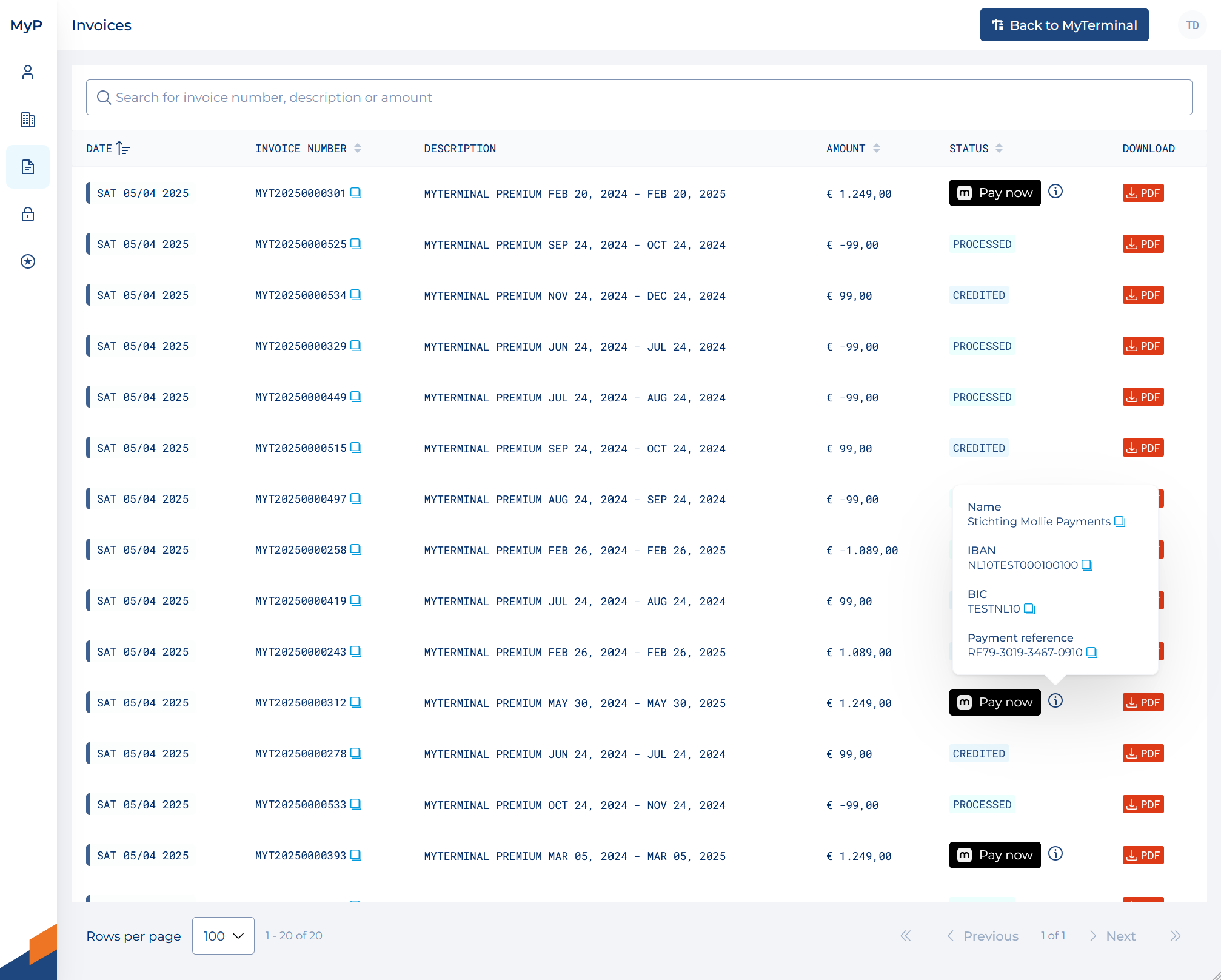
You can find an overview of all your invoices on the invoices page in your Settings.
The invoices page gives you the possibility to view, download and pay MyTerminal invoices.
The following columns are displayed in the overview
You can search for a specific invoice by invoice number, description or amount due.
Additional information is available under Open Invoices. By clicking the “i” icon next to the “Pay now” button, you can view the invoice details, including the beneficiary name, IBAN, BIC, and payment reference.
Using the “Pay now” button, you can easily complete your payment via iDEAL or similar payment methods. Payments made this way are typically received within minutes. If your terminal access or any additional services have been suspended, your account will be automatically unblocked immediately after the payment is received. Once the payment has been received, a confirmation email will be sent to you.
If you have any questions, please check our frequently asked questions or send an email to myterminal@ect.nl

